How to view your bill, set up recurring payments, and more
A Quick Guide To Your FlowSmart Dashboard

One-stop portal
FlowSmart is Flo's account dashboard - a one-stop portal designed for customers to easily manage their Flo account, with features that support bill payment, plan management, and more!
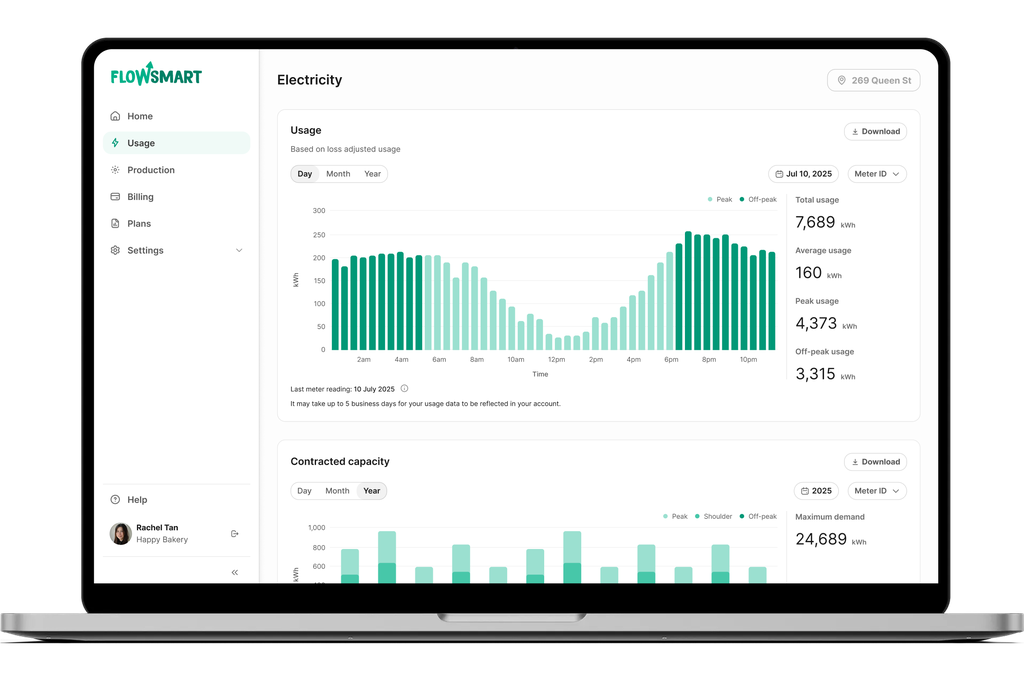
How to view your energy usage
- Log in to your FlowSmart Dashboard
- Click 'Usage' on the navigation menu. Over here, you will be able to see your property's energy usage trend.
If you have multiple premises signed with Flo, you can also view the energy usage data for each one of the premises. Scroll down to find out how.
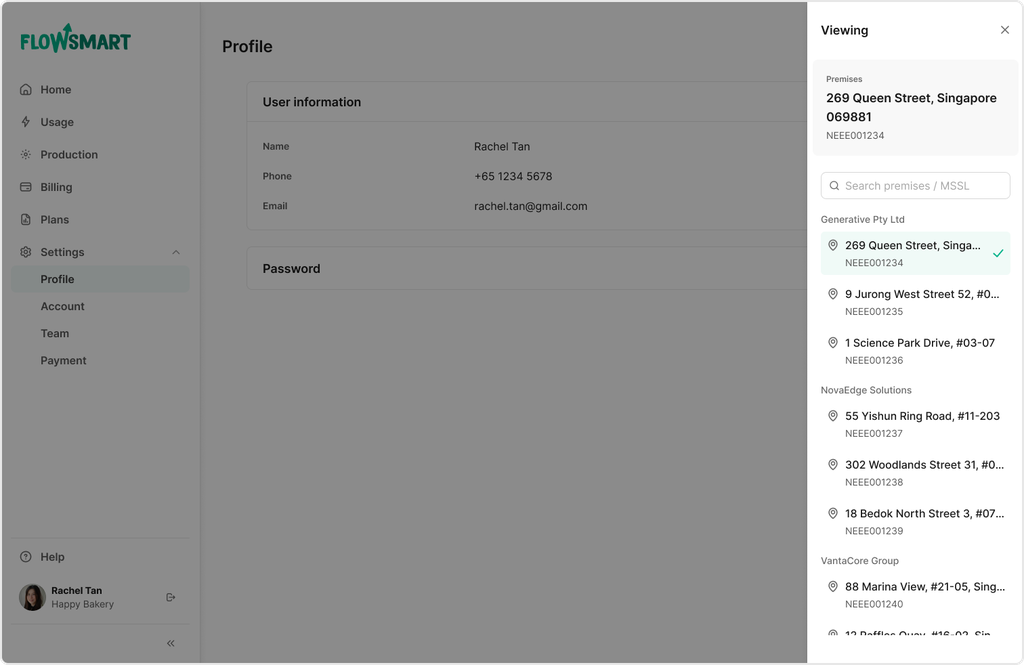
How to switch views between multiple premises
If your business has multiple premises that are supplied by Flo, you can switch your dashboard views between those premises.
- Log in to your FlowSmart Dashboard
- On the top right-hand corner, you will see a button showing your Selected Premises' Address.
- Click on it, and you will see a sidebar displaying all of your premises associated with your account. Select the premise that you want to view.
If your additional premises are not listed there, contact your account manager and we will sort it out for you. Alternatively, you can also send an email to hello@floenergy.sg.
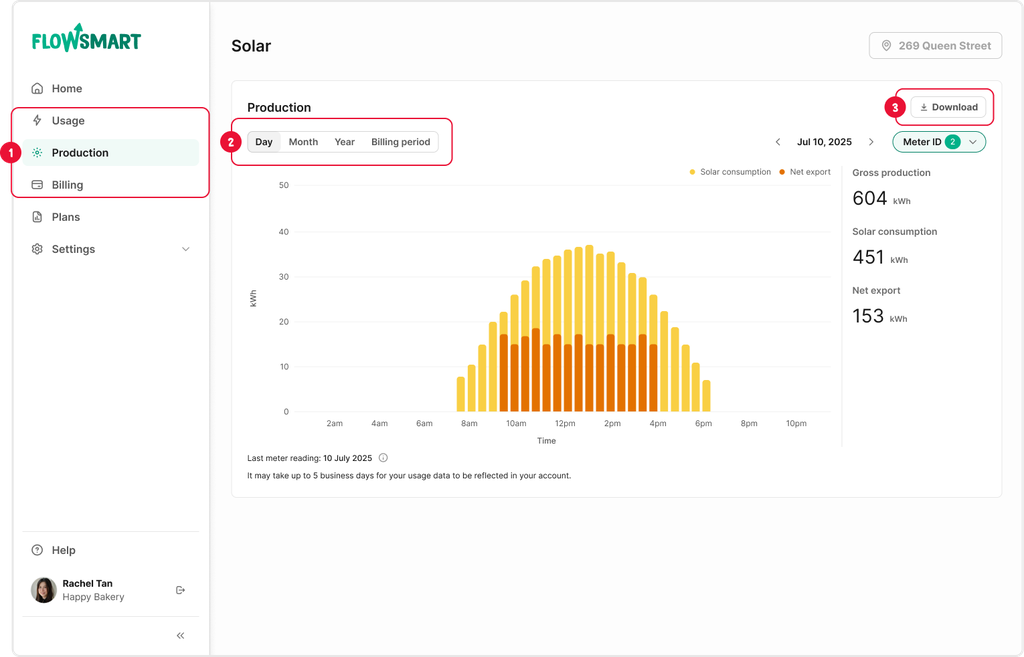
How to view your energy production
This only applies to our Flo Solar Solutions customers:
- Log in to your FlowSmart Dashboard. Click on the 'Production' tab.
- In the Production tab there will be the following options for you to choose from: 'Day', 'Month', 'Year', 'Billing Period'.
- Once you’ve selected the data you need, click the 'Download' button in the top right to save it as a CSV file.
The default file name is 'data'. Feel free to change this to something more descriptive.
The file will be saved in your downloads folder.
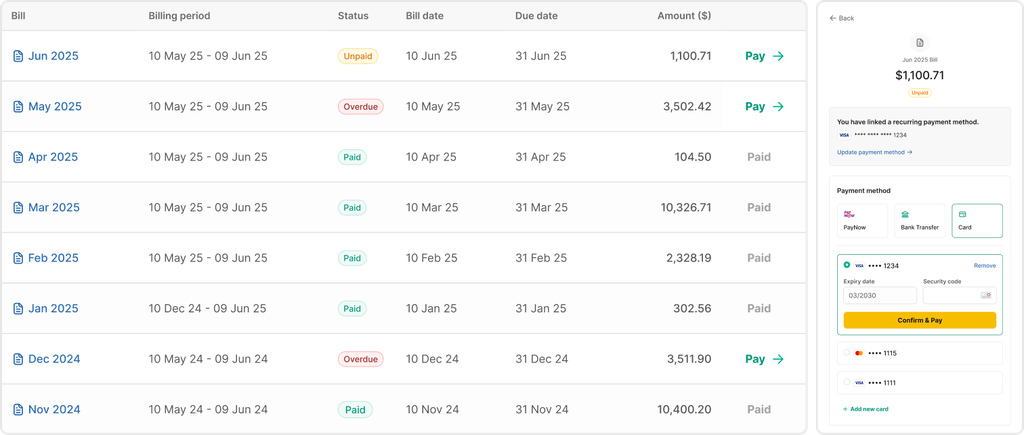
How to view and pay your bill
- Log in to your FlowSmart Dashboard
- Click 'Billing' on the navigation menu. Here, you will be able to see all your outstanding and past invoices.
- To pay for an invoice, click on the 'Pay →' button on the right-most column.
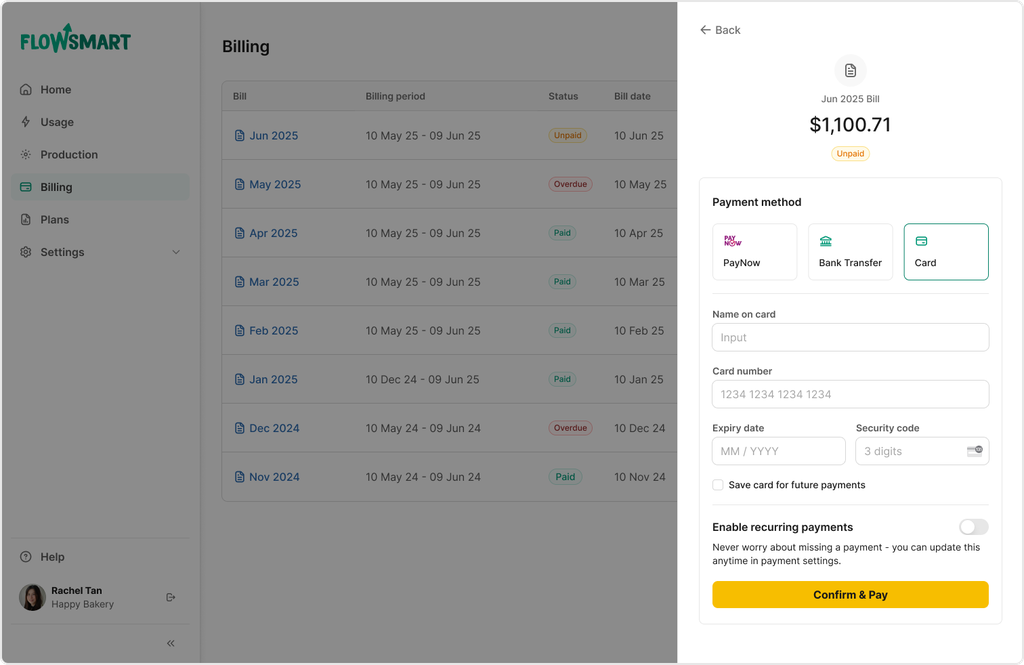
- A sidebar will appear showing your invoice amount, as well as the available payment options (PayNow, Bank Transfer, Card Payment).
How to set up recurring payment
Primary Method - Billing (for credit cards only):
- Log in to your FlowSmart Dashboard.
- Click 'Billing' on the navigation menu. Then, click on the 'Pay →' button on the right-most column.
- Under Payment Method, click on 'Card'.
- Fill in your payment card details here. You can also choose to save your card for future payments.
- Click on the toggle to 'Enable recurring payments'.
- Click 'Confirm & Pay' to initiate recurring payment.
- You can update or change this anytime by clicking on ‘Settings’, followed by ‘Payments’.
Alternative Method - Payments (for eGIRO):
- Log in to your FlowSmart Dashboard.
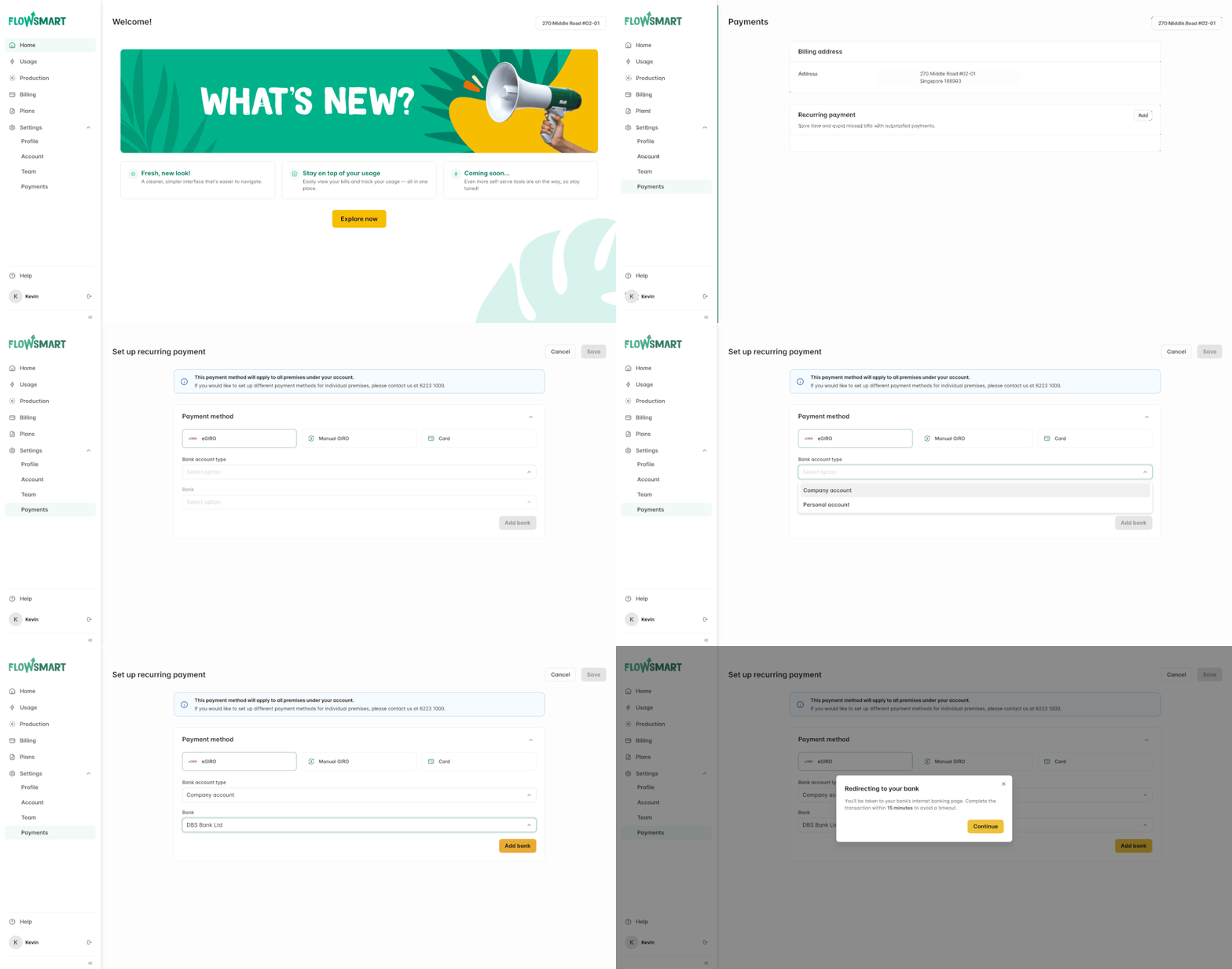
- Click 'Settings' on the navigation menu. Then, click on 'Payments'.
- Under Recurring payment, click the 'Add' button.
- Select 'eGIRO' as the Payment method.
- Follow the on-screen instructions to complete the setup.
- Upon successful completion, a confirmation email will be sent to you.
How to view your plan details
- Log in to your FlowSmart Dashboard
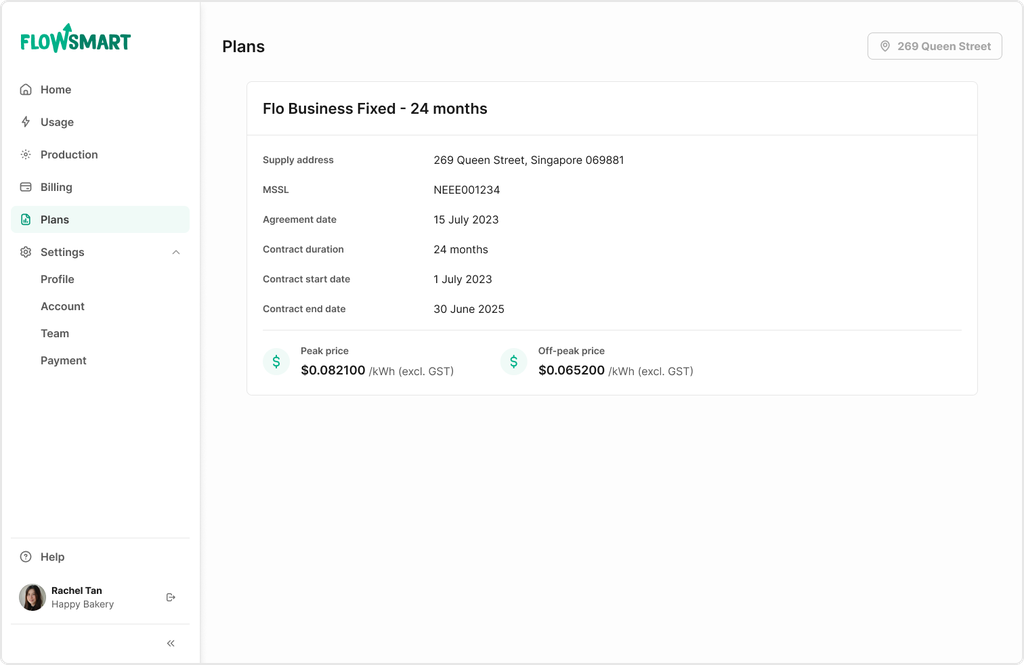
- Click 'Plans' on the navigation menu.
- Your plan details will be displayed here with the supply address, MSSL number, agreement date, contract duration, and more.
How to view and manage your team
Primary account holders can now manage their team and assign different roles as needed.
- Log in to your FlowSmart Dashboard.
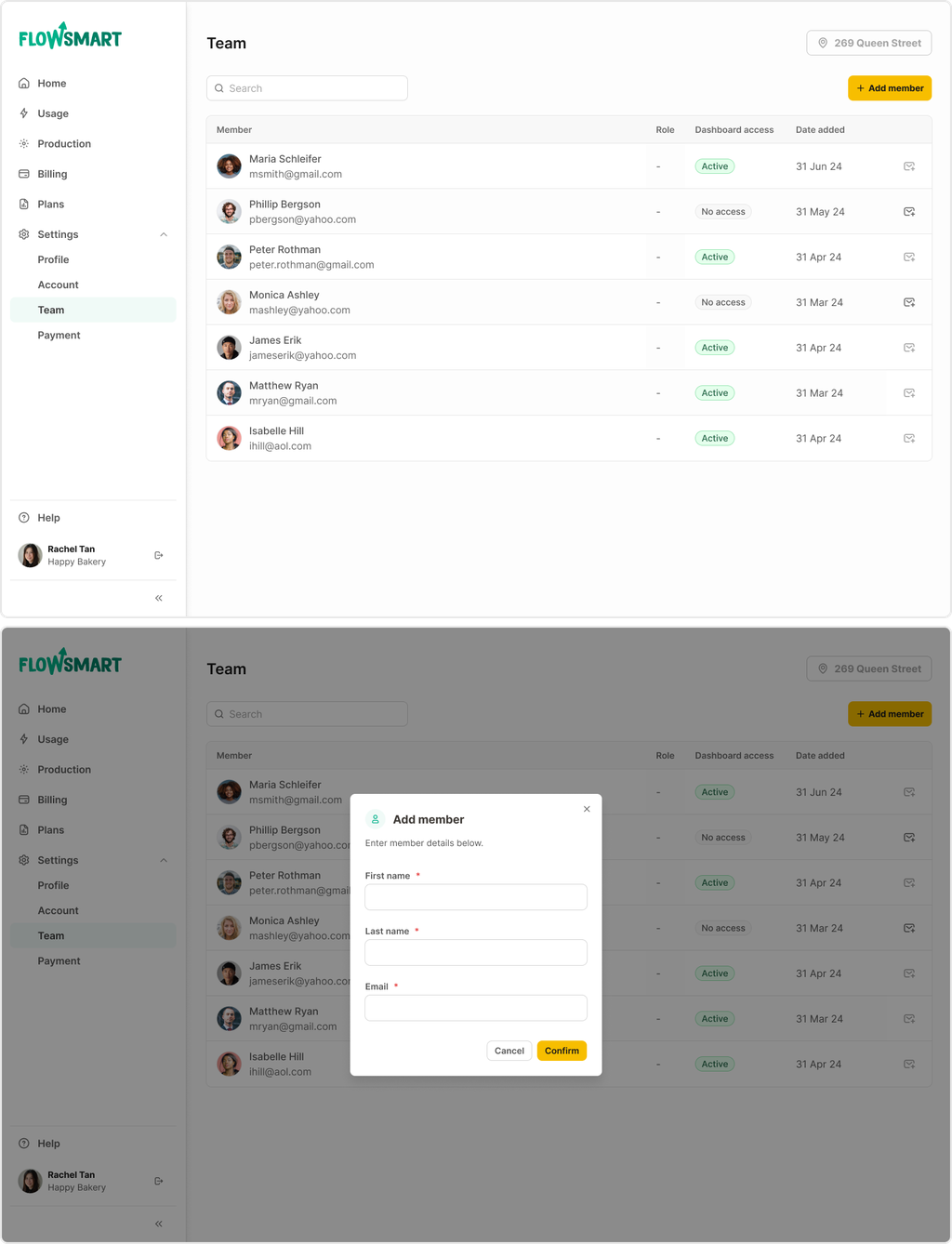
- Click 'Settings' and then 'Team' in the navigation menu. Here, you will be able to see the team members associated with your account.
Adding new members into the account:
- Click the ‘Add member’ button at the top right-hand corner.
- A pop-up form will appear. Fill out the details of the team member you would like to add. Once completed, click 'Confirm'.
Granting dashboard access to team members:
- When a team member is added, click the message icon on the right to invite them to access the dashboard. They’ll receive an email with instructions, and their access status will update to 'Active'.
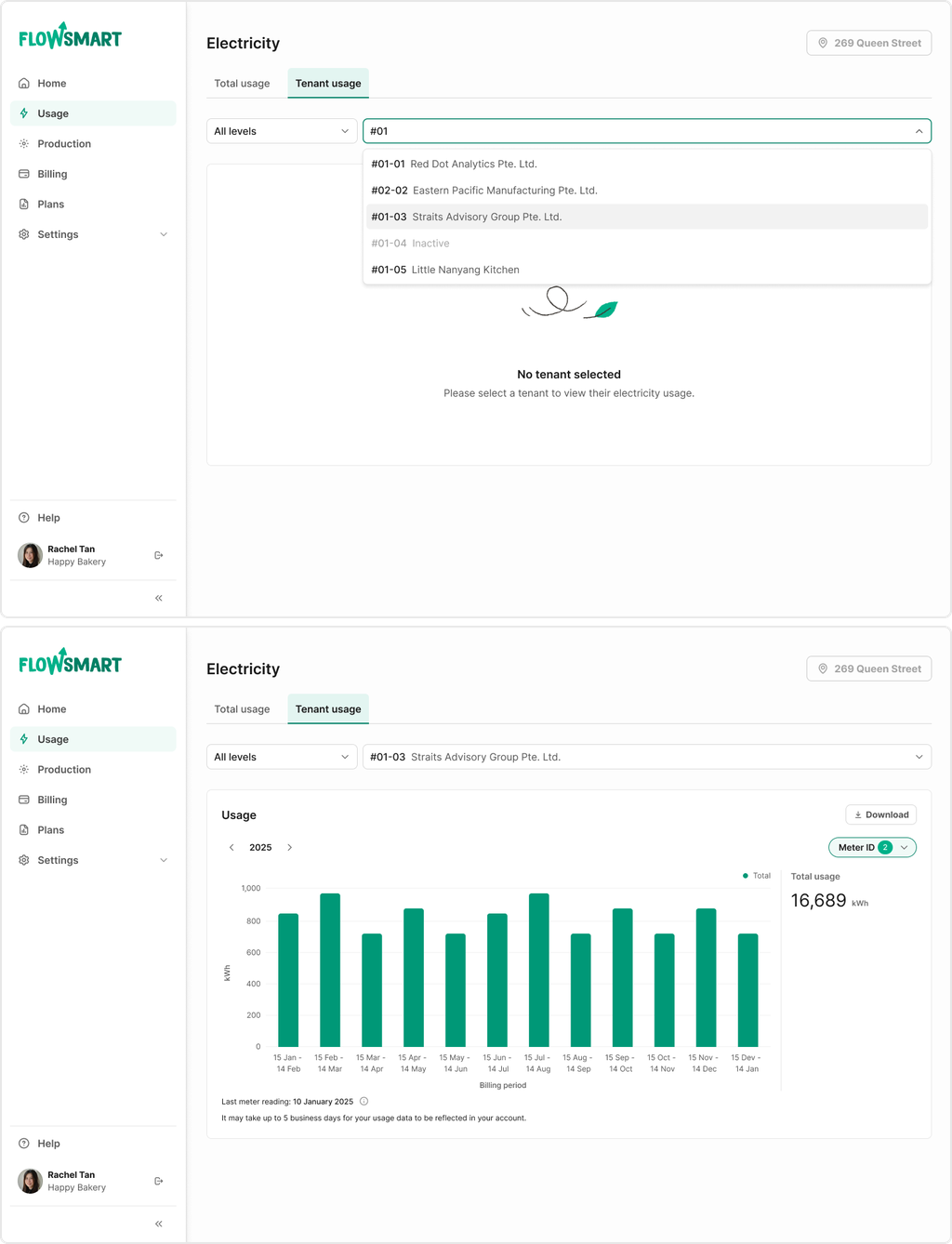
How to view your tenant energy usage
If your property has multiple tenants that are supplied by Flo, you can switch your dashboard views between your property's total energy usage and a particular tenant’s energy usage.
- Click on 'Usage' in the navigation menu.
- Select the 'Tenant Usage' tab to navigate to a single tenant usage view.
- Here, you will be able to see the list of tenants sorted by the level they are located on. Use the dropdown box to filter by the level, and you can easily look for a specific tenant on that particular level using the search bar.
- Once a tenant is selected, the usage for that particular tenant will be displayed.
If certain tenants are not listed there, contact your account manager and we will sort it out for you. Alternatively, you can also send an email to hello@floenergy.sg.